Short Answer
Connect your Amazon account by going to the Store section in PODtomatic, clicking "Connect", and following the prompts to authorize your Amazon Seller account. Then run a "Test Post" and set your brand name and daily upload limit in Settings.
Before You Begin
Make sure you have:
- An Amazon Professional Seller account — required to list and sell products on Amazon
- A PODtomatic account — log in here if you already have one
- (Optional) A GTIN exemption — if you've already applied for the GTIN exemption on Amazon
Step-by-Step Connection Guide
Follow these steps to connect your Amazon account to PODtomatic:
Step 1: Open the Store Section
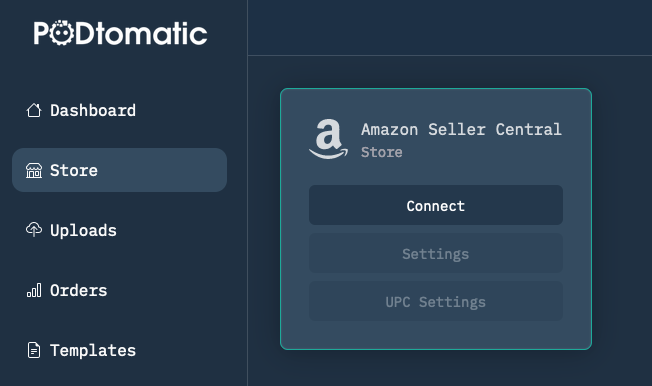
Log in to your PODtomatic account and go to the Store section.
Step 2: Connect Your Amazon Account
Click "Connect" and follow the instructions to connect your Amazon account to PODtomatic. You'll be redirected to Amazon to authorize the connection.
Step 3: Run a Test Post
Click the "Test Post" button to ensure PODtomatic can upload products smoothly to your Amazon account. This confirms everything is working before products start uploading.
Step 4: Set the Brand Name and Daily Upload Limit
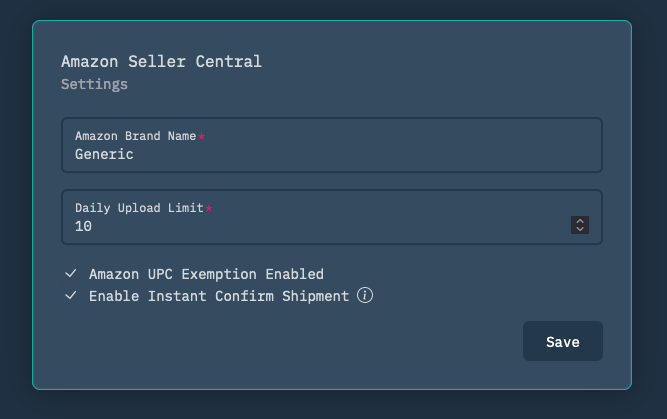
After connecting your Amazon account, go to the Settings section.
Configure the following options:
- Amazon Brand Name — if you don't have a registered brand name, insert "Generic." If you have a registered brand name, you can use your own brand name.
- Daily Upload Limit — sets how many products will be uploaded to Amazon each day. Start with 5–10 products per day for new Amazon accounts and increase up to 200 products per day for established accounts.
- Amazon UPC Exemption Enabled — check this if you've already applied for the GTIN exemption from Amazon.
- Enable Instant Confirm Shipment — check this if you want the system to confirm the shipment on Amazon immediately after placing the order (recommended).
Step 5: You're Connected!
Once your Amazon account is connected and your settings are saved, PODtomatic will start creating and uploading products to your Amazon account — usually within the next 24 hours.
✅ Congratulations!
Your Amazon account is now connected to PODtomatic! The platform will handle product creation and uploads automatically from here.
Troubleshooting
❌ Test Post Failed
- Re-authorize your account — disconnect and reconnect your Amazon account from the Store section
- Check your seller account status — make sure your Amazon Professional Seller account is active and in good standing
- Verify permissions — ensure you completed the full authorization flow on Amazon's side
⚠️ Products Not Uploading
- Check your daily upload limit — a limit of 0 means no products will upload; set it to at least 5–10
- Allow up to 24 hours — uploads begin within 24 hours of completing setup
- Confirm your brand name — leaving it blank can block listings; use "Generic" if you have no registered brand
Still having trouble? Contact our support team for help connecting your Amazon account.